It’s a familiar scene: you’re deep into a binge-watching session on Netflix, the credits roll on one episode, and your hand hovers over the remote, ready to relax and let the next one start automatically. But then… nothing. The screen just sits there, patiently waiting for you to intervene. That moment of frustration when your Netflix autoplay settings aren't saving, forcing you to manually click "Next Episode," can feel like a minor disruption to your perfect viewing rhythm.
You’re not alone. This hiccup, where autoplay refuses to work as intended, is a common annoyance that can break the immersive experience Netflix is famous for. While the issue might seem persistent, it’s usually quite fixable. As a seasoned guide in the digital streaming landscape, I'm here to walk you through a clear, effective troubleshooting process, ensuring your Netflix returns to its seamless, auto-playing glory.
At a Glance: Your Quick Fix Checklist
Before we dive into the nitty-gritty, here’s a rapid overview of the most common solutions. Think of this as your quick-reference guide if you’re short on time but need to get back to your show:
- Verify Profile Settings: Double-check autoplay is enabled for your specific profile on the Netflix website.
- Restart Everything: Close Netflix, power cycle your device, and restart your router.
- Clear Cache & Data: Old files can cause glitches; clear them for Netflix on your device or browser.
- Update or Reinstall: Ensure your Netflix app is the latest version, or reinstall it entirely.
- Sign Out, Then In: A fresh login can often reset and sync your settings.
- Test on Another Device: See if the problem is device-specific or account-wide.
- Browser-Specific Checks: If using a browser, disable extensions and check browser autoplay permissions.
Understanding Why Autoplay Goes Rogue
Netflix's autoplay feature isn't just a convenience; it's a cornerstone of the binge-watching experience, automatically transitioning from one episode to the next and even previewing titles as you browse. When it stops working, it's often due to one of several common culprits. Knowing why it might be failing can help you target your troubleshooting efforts more effectively.
Here are the usual suspects behind Netflix autoplay refusing to save or function:
- Profile-Specific Settings: Autoplay is managed per profile. If it's off on your profile, it won't work, even if it's on for someone else's. This is the most frequent reason.
- Network Gremlins: An unstable or slow internet connection can prevent Netflix from loading the next episode quickly enough, making it seem like autoplay isn't working.
- Outdated App or Browser: Software glitches are common, especially after system updates. An old Netflix app or browser version might simply not be communicating correctly with Netflix's servers.
- Cache Overload: Every app and browser accumulates temporary files (cache) to speed things up. When these files become corrupted or too numerous, they can interfere with normal operations.
- Device-Specific Quirks: Autoplay can behave differently across various devices — a Smart TV, a mobile phone, a tablet, or a web browser. Each has its own system and potential for unique issues.
- Browser Extensions: Ad blockers or other browser extensions can sometimes interfere with how websites, including Netflix, function, particularly with auto-playing previews or videos.
- System Glitches: Sometimes, the device itself (your Smart TV, phone, computer) might have a temporary bug affecting app performance.
The Troubleshooting Toolkit: Your Step-by-Step Fixes
Now that we understand the potential causes, let's roll up our sleeves and tackle these issues methodically. Start at the top and work your way down; often, the simplest solutions are the most effective.
1. Confirm Your Netflix Autoplay Settings (The First Check)
This is often the core of the problem. Autoplay settings are tied to individual Netflix profiles, so if you're sharing an account, what's set for one person might not be for another. You need to ensure the setting is enabled for your specific profile.
Via Web Browser (Recommended for reliability):
This is typically the most reliable way to manage playback settings as it syncs directly with Netflix's servers.
- Log In: Go to the Netflix website (netflix.com) on a computer or web browser.
- Access Account: Hover over your profile icon in the top right corner, then click
Account. - Find Your Profile: Scroll down to the
Profile & Parental Controlssection. You'll see a list of profiles associated with your account. - Edit Playback Settings: Click the downward arrow next to your specific profile to expand its options, then find and click
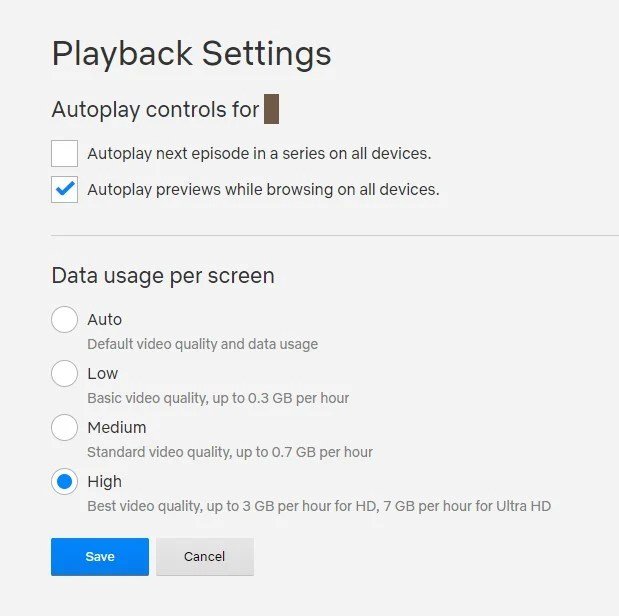
Changenext toPlayback settings. - Enable Autoplay: Here, you should see two checkboxes:
Autoplay next episode in a series(for binge-watching)Autoplay previews while browsing on all devices(for trailers/previews)
- Tick both boxes if they aren't already checked.
- Save Changes: Click the
Savebutton. - Refresh: As a best practice, sign out of Netflix on your problem device, then sign back in after making these changes. Sometimes, it takes a moment for settings to propagate.
On Android/Tablet (Via Netflix App):
While the web browser method is preferred, you can also check some settings directly within the app. - Open Netflix: Launch the Netflix app.
- Tap User Icon: From the Netflix home screen, tap your user icon (usually in the top-right or bottom-right corner).
- Manage Profiles: Tap
Manage Profiles. - Select Your Profile: Choose the profile you want to edit.
- Toggle Autoplay: Look for a toggle switch labeled
Autoplay Next Episodeand ensure it's turnedOn. Note that options for preview autoplay might be less granular here.
On Other Devices (Smart TVs, Consoles - General Guidance):
Some devices offer direct access to playback settings, but it's less common than via the web. - Log In: Open the Netflix app and log into your profile.
- Navigate to Account: Look for a
Profileicon or aSettingsgear, then navigate toAccountorMy Profile. - Playback Settings: Search for an option like
Playback Settings. - Check Autoplay: Ensure
Autoplay next episode in a series on all devicesis checked. - Save: Click
Saveif you made any changes.
After confirming these settings, always sign out of Netflix on your affected device and sign back in to force a refresh.
2. Refresh & Reset: The Power of a Restart
It sounds simple, but a good old-fashioned restart can resolve a surprising number of software glitches. It clears temporary memory issues and gives your system a fresh start.
- Force Close Netflix:
- Mobile (iOS/Android): Swipe up from the bottom of the screen (or double-tap the home button on older iPhones) to bring up recent apps, then swipe the Netflix app upwards to close it completely.
- Smart TV/Console: Go back to your device's home screen, then open Netflix again. Some devices have a "Force Stop" option in app settings if a simple re-opening doesn't work.
- Browser: Close all Netflix tabs in your web browser.
- Restart Your Device: Completely power off your device (phone, tablet, Smart TV, computer, gaming console). Wait 30 seconds, then power it back on.
- Reboot Your Router (The Cold Reboot): Your internet connection can directly impact autoplay.
- Unplug your internet router and modem from the power outlet.
- Wait a full 60 seconds. This allows capacitors to fully discharge.
- Plug your modem back in first, wait for its lights to stabilize.
- Plug your router back in, wait for its lights to stabilize.
- Once your internet is fully back online, relaunch Netflix.
3. Clear the Clutter: Cache & Data Management
Accumulated cache files are a common culprit for app misbehavior. These temporary files are meant to speed up performance, but they can become corrupted or outdated, leading to issues like autoplay settings not saving.
For Android Phones/Tablets, Firestick, Roku, Android TVs:
- Go to Settings: Navigate to your device's main
Settings. - Find Apps: Look for an option like
Apps,Applications, orApp Manager. - Locate Netflix: Scroll through the list and tap on
Netflix. - Storage Options: Tap
StorageorStorage & Cache. - Clear Cache: Select
Clear Cache. Avoid "Clear Data" unless specifically instructed, as it will erase your login information. - Restart Device: After clearing the cache, restart your device for the changes to take full effect, then reopen Netflix.
For iOS (iPhones/iPads):
Apple's iOS doesn't offer a direct "Clear Cache" button for individual apps. The most effective way to clear an app's cache on iOS is to reinstall it. - Delete App: Tap and hold the Netflix app icon on your home screen until it jiggles.
- Remove App: Tap the
xorRemove Appoption, then confirmDelete App. - Reinstall: Go to the App Store, search for Netflix, and reinstall it. You will need to log back in.
For Chrome Browser: - Open Chrome: Launch your Chrome browser.
- Access Settings: Click the three-dotted icon (kebab menu) in the top-right corner.
- Privacy & Security: Go to
Settings>Privacy and Security>Clear browsing data. - Time Range & Data Types:
- Set the
Time rangetoAll time. - Go to the
Advancedtab. - Ensure
Cached images and files,Cookies and other site data, and optionallyBrowsing historyare checked.
- Clear Data: Click
Clear data. - Restart Browser: Close and reopen Chrome, then navigate to Netflix.
4. The Grand Re-Entry: Sign Out and Back In
Sometimes, your device's Netflix app simply needs to re-establish a fresh connection with the Netflix servers to properly sync your profile settings.
Via Netflix App (Mobile/Smart TV/Console/PC Browser):
- Open Netflix App/Browser: Launch Netflix.
- Access Profile Menu: Tap/click your user icon (usually top-right or bottom-right).
- Sign Out: Look for
Sign OutorSign Out of Netflixand select it. Confirm if prompted. - Log Back In: Re-enter your Netflix credentials.
Sign Out of All Devices (A More Aggressive Reset):
If you suspect a wider syncing issue or if the simpler sign-out doesn't work, forcing a sign-out on all devices can often resolve persistent problems. This will require you to log back in on every device that uses your Netflix account. - Log In (Web Browser): Go to netflix.com in a web browser.
- Access Account: Hover over your profile icon >
Account. - Settings: Scroll down to the
Settingssection. - Sign Out of All Devices: Click
Sign out of all devices. - Confirm: Confirm your decision.
- Log Back In: You'll need to manually log back into Netflix on each of your devices, including the one experiencing the autoplay issue.
5. App Fresh Start: Update or Reinstall Netflix
An outdated or corrupted app installation can certainly lead to features like autoplay misbehaving.
- Update Your Netflix App:
- Mobile (iOS/Android): Go to your device's App Store (Google Play Store for Android, Apple App Store for iOS). Search for "Netflix." If an update is available, you'll see an "Update" button instead of "Open." Install it.
- Smart TV/Console: Access your device's app store or system settings. Look for an "Apps," "Manage Applications," or "Updates" section. Find Netflix and check for updates.
- Reinstall Netflix App (If updating doesn't work or for iOS cache clear):
- Uninstall: Delete the Netflix app from your device.
- Android/Firestick/Roku/Android TV: Go to
Settings>Apps>Netflix>Uninstall. - iOS: Long-press the app icon >
Remove App>Delete App. - Smart TV/Console: Methods vary, but generally, navigate to your app list, highlight Netflix, and look for an "Uninstall" or "Delete" option.
- Reinstall: Go to your device's app store (Google Play Store, Apple App Store, Roku Channel Store, TV's Smart Hub, etc.), search for "Netflix," and reinstall it.
- Log In: Log back into your Netflix account.
6. Is It Your Device? The Cross-Device Test
This step is a crucial diagnostic. If autoplay works perfectly on one device but not another, it strongly suggests the problem is with the specific device or its app installation, rather than your Netflix profile settings themselves.
- Pick Another Device: Grab a different device where you have Netflix installed (e.g., if it's not working on your Smart TV, try your phone or laptop).
- Log In to the Same Profile: Log into the exact same Netflix profile that's having the autoplay issue.
- Test Autoplay: Start watching a series. See if the next episode auto-plays and if previews auto-play while browsing.
- If Autoplay Works: The problem is isolated to your original device. Focus your troubleshooting efforts there (reinstalling, clearing cache, checking device firmware).
- If Autoplay Still Doesn't Work: This suggests the issue might be with your Netflix account or profile settings themselves, even after you checked them. Revisit step 1 and step 4 (Sign out of all devices) with extra scrutiny.
7. Browser-Specific Battles: Chrome, Safari & Extensions
If you're primarily experiencing autoplay issues while using Netflix in a web browser, there are a few additional browser-specific culprits to consider.
- Disable Browser Extensions: Ad blockers, privacy extensions, or even VPN browser extensions can sometimes interfere with website scripts, including those that control autoplay.
- Access Extensions: In Chrome, click the puzzle piece icon (Extensions) in the top-right. In Safari, go to
Safari>Preferences>Extensions. - Disable Temporarily: Try disabling all extensions, or specifically any ad blockers or privacy tools, then restart your browser and test Netflix. If autoplay works, re-enable extensions one by one to pinpoint the culprit.
- Clear Browser Cookies and Site Data for Netflix: Even if you cleared general browser cache (as in Step 3), specific site data for Netflix might be an issue.
- Chrome: Go to
Settings>Security and Privacy>Cookies and other site data>See all site data and permissions. Search for "Netflix" and click the trash can icon next to it to remove its data. - Safari: Go to
Safari>Preferences>Privacy>Manage Website Data. Search for "Netflix," select it, and clickRemove.
- Ensure Media Autoplay is Allowed: Browsers have their own settings for media autoplay, sometimes overriding website preferences.
- Chrome:
- Go to
Settings>Privacy and Security>Site Settings. - Under
Permissions, findAdditional content settings, then clickSound. - Ensure
Sites can play soundorAllowis selected. Some older versions might have a specificAutoplaysetting here; ensure Netflix isn't blocked.
- Safari: Safari generally tries to be smart about autoplay. If you're having trouble, check your individual website settings (
Safari>Settings for This Website...while on Netflix) to ensure video autoplay isn't specifically blocked.
8. Smart TVs & Consoles: Device-Specific Deep Dive
Smart TVs and gaming consoles have their own operating systems and firmware, which can sometimes be the root cause of app issues.
- Log Out & Reinstall: Start with the standard log out/log in and then a complete reinstallation of the Netflix app (as detailed in previous steps). This is often the most effective fix on these platforms.
- Update TV/Console Firmware: Just like your phone or computer, your Smart TV or gaming console needs its operating system to be up to date.
- Check for Updates: Go to your TV's or console's main
Settingsmenu. Look forSystem,About,Software Update, orSupport. - Install Updates: If an update is available, install it. This can often resolve underlying compatibility issues that affect apps.
- Set Up a Fresh Netflix Profile (Test): Create a brand-new, temporary profile on your Netflix account via a web browser. Then, try logging into this new profile on your problematic TV/console and see if autoplay works there. If it does, your original profile on that device might have a deeper local corruption.
- Check Device Compatibility: While rare for autoplay issues, ensure your specific Smart TV or console model is fully compatible with the latest Netflix features. Netflix's official website usually has a list of supported devices. If your device is very old, it might have limitations.
Navigating Common Questions & Nuances
Even after all the troubleshooting, some specific scenarios pop up. Let's address those.
Why Do Previews Autoplay, But Episodes Don't?
This is a clear indicator that your "Autoplay previews while browsing" setting is enabled, but your "Autoplay next episode in a series" is not. Revisit Step 1 (Confirm Your Netflix Autoplay Settings) and ensure both checkboxes are ticked in your profile's Playback settings via a web browser. It's easy to miss one!
Can Ad Blockers or VPNs Interfere?
Yes. While VPNs are less likely to interfere directly with autoplay settings saving, an unstable VPN connection could mimic network issues, preventing smooth episode transitions. Ad blockers, especially in browsers, are notorious for interfering with JavaScript elements on websites, which includes the code that manages preview autoplay. Always test with them temporarily disabled if you suspect them.
Is Autoplay Limited on Certain Devices?
Netflix generally aims for consistent functionality across platforms. However, very old Smart TVs or some specific, less common streaming devices might have limitations due to hardware or outdated software. If you've tried everything and the issue persists only on one specific, older device, device incompatibility could be a factor. You can check the manufacturer's or Netflix's support pages for known limitations for your specific model.
I Want to Turn Autoplay Off – How Do I Do That?
Funnily enough, the process to turn autoplay off is almost identical to turning it on! You'll navigate to your profile's Playback settings via a web browser (as in Step 1). Instead of checking the boxes, you'll simply uncheck Autoplay next episode in a series and/or Autoplay previews while browsing on all devices, then click Save. For a comprehensive guide on managing this feature, you can learn more about how to turn off Netflix autoplay effectively.
Netflix Loads, But Content Doesn't Play At All?
If you're beyond autoplay issues and Netflix isn't even playing content, your problem is likely a broader internet connection issue or a deeper app/device glitch.
- Check Internet Stability: Run a speed test (fast.com is owned by Netflix). If your speeds are low or inconsistent, restart your router and modem.
- Device & Router Restart: A cold reboot of your device and router (as in Step 2) is the first line of defense here.
- Try Other Streaming Services: If other streaming apps also struggle, it's definitely your internet or device, not just Netflix.
Keeping Your Netflix Experience Smooth
Dealing with Netflix autoplay settings not saving can be a minor headache, but by systematically working through these troubleshooting steps, you'll almost certainly find a solution. Remember, the core principles are always the same: verify your settings, refresh your systems, and eliminate potential interference.
Once you’ve got autoplay back on track, consider making a habit of occasionally checking for app updates or clearing your cache, especially if you notice other small glitches. A little preventative maintenance can go a long way in ensuring your next binge-watch is as seamless and uninterrupted as possible. Happy streaming!