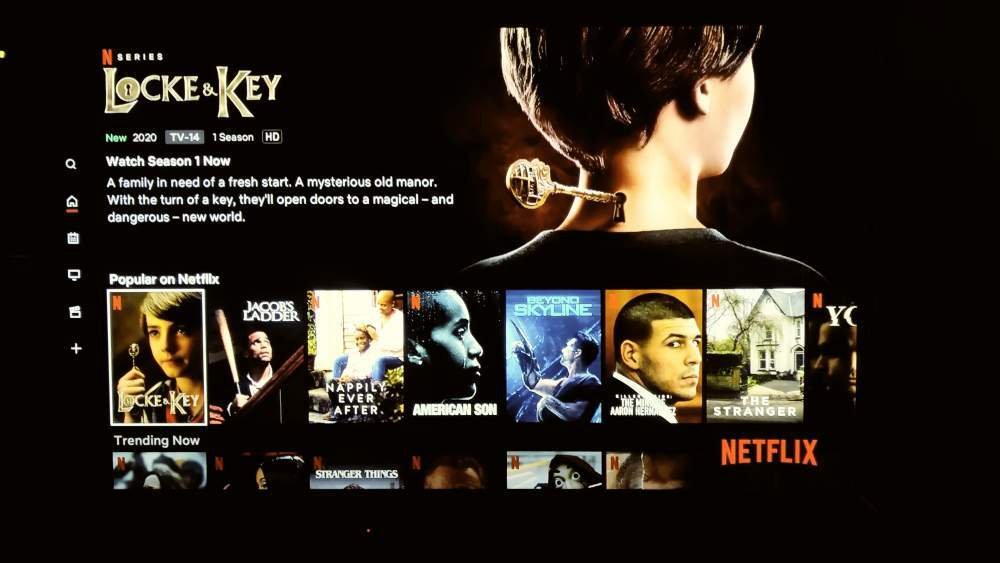
It's happened to all of us: You're unwinding on the couch, thoughtfully scrolling through Netflix, searching for that perfect movie or show. Suddenly, a loud trailer blares from your TV, jarring you out of your peaceful browsing. Your eyes dart to the screen, only to realize it's just an "autoplay preview," one of many that activate every time you hover over a title. If this common scenario sounds frustratingly familiar, you're not alone. The good news is that managing Netflix autoplay on Smart TVs & streaming devices is entirely within your control. You can, in fact, stop this digital noise and reclaim your quiet browsing experience.
This isn't about ditching Netflix; it's about customizing it to your preferences. Whether you're tired of jump-scares from horror movie trailers or simply prefer a silent browsing experience, we'll walk you through how to silence those automatic previews and even take control of what happens after one episode ends.
At a Glance: Key Takeaways to Master Netflix Autoplay
- You're in Control: Netflix allows you to disable autoplay previews for browsing and auto-play for the next episode.
- Web or Mobile is Key: All changes must be made through the Netflix website (via a web browser) or the official Netflix mobile app, not directly on your Smart TV or streaming device.
- Profile-Specific: These settings are customized for each individual profile on an account, so your preferences won't impact other users.
- Not Instant: Changes might not take effect immediately and may require you to refresh your device (e.g., switch profiles, sign out and back in).
- A Few Limitations: Autoplay preview disabling doesn't work on iPads and some older TV devices. It also won't stop previews after you've clicked into a movie or show's specific page.
The Autoplay Dilemma: Why It Bothers Us (and How Netflix Benefits)
Netflix introduced autoplay previews years ago with a clear goal: to increase engagement and help users discover content faster. The idea is that a short, compelling clip might entice you to click on a title you might otherwise scroll past. From a business perspective, it's about reducing "choice paralysis" and keeping eyes on the screen, moving from discovery to consumption seamlessly.
However, for many viewers, this constant barrage of sound and motion is less about discovery and more about disruption. Imagine trying to discuss dinner plans with your family while a movie trailer suddenly starts playing audio over the show description. Or perhaps you're simply in a quiet mood, unwinding after a long day, only to be startled by an unexpected sound bite. This isn't just an inconvenience; it can be a genuine source of cognitive overload, making the simple act of browsing feel like a chore rather than a pleasure.
The sensory overload of autoplay previews clashes with the desire for a calm, curated user experience. It shifts control from the viewer to the algorithm, pushing content rather than allowing for deliberate exploration. Fortunately, Netflix recognized user feedback and provided a way to opt-out.
Your Autoplay Toolkit: What You Can Control (and What You Can't)
Before diving into the "how-to," let's clarify precisely what you can and cannot manage when it comes to Netflix's autoplay features. Understanding these boundaries will set accurate expectations and help you make the most of the available settings.
Autoplay Previews vs. Next Episode Autoplay
Netflix actually has two distinct autoplay features you can manage:
- Autoplay Previews: These are the video clips, trailers, or snippets that automatically play with audio when you browse content thumbnails on your Smart TV, streaming stick, game console, or even on a title's individual page on a phone. This is the primary culprit behind the sudden noise and motion while you're simply scrolling.
- Autoplay Next Episode: This feature automatically starts the next episode in a TV series once the current one finishes. While it's incredibly convenient for uninterrupted binge-watching, it can also lead to unintentional hours spent in front of the screen or make it hard to pause and reflect on an episode's ending.
You can disable both of these features independently, giving you granular control over your viewing flow.
Profile-Specific Customization
One of the best aspects of Netflix's autoplay settings is that they are customizable per profile. This means:
- If you share an account with family members, each person can choose their own preference. You can have a quiet browsing experience while your spouse prefers the interactive previews.
- Parents can manage these settings for their children's profiles, ensuring a calmer environment for younger viewers.
- Changes made to one profile will not affect any other profile on the same Netflix account. This is crucial for maintaining harmony in multi-user households.
Device Compatibility Notes
While the settings you change apply across virtually all modern devices associated with your profile, there are a couple of exceptions:
- iPads: Unfortunately, disabling autoplay previews is not currently supported on iPads. This means you might still encounter them when browsing on your Apple tablet.
- Older TVs and Streaming Devices: Some very old Smart TVs or first-generation streaming devices might not fully support these settings, even after disabling them on the web or mobile. While this is rare with current firmware updates, it's worth noting.
The "Instant Impact" Caveat
Don't expect your changes to be instantaneous across all devices. Netflix's system needs a moment to register and propagate the new settings. If you disable autoplay previews and immediately jump back to your TV, they might still be playing. A quick refresh is often needed, which we'll cover in the troubleshooting section.
Understanding these nuances ensures you approach the process with clear expectations, empowering you to effectively take charge of your Netflix experience.
Step-by-Step Guide: Silencing Those Previews
The key to stopping Netflix autoplay is to understand that the settings are managed centrally, not on the individual device you're watching on. You'll need to use either the Netflix website via a web browser or the official Netflix mobile app. Let's break down the process for each.
Method 1: Taming Netflix Autoplay via Web Browser
This is often the easiest and most reliable method, especially if you have access to a computer or laptop.
- Open Your Web Browser: Launch your preferred web browser (Chrome, Firefox, Edge, Safari, etc.) and go to www.netflix.com.
- Sign In to Your Account: If you're not already logged in, enter your email address and password.
- Navigate to Your Account Page: In the top-right corner of the Netflix homepage, hover over your profile icon. A dropdown menu will appear. Click on "Account."
- Select the Desired Profile: On the Account page, scroll down to the "Profile & Parental Controls" section. You'll see a list of all profiles associated with your account. Click the downward-pointing arrow (or the profile icon itself) next to the specific profile you wish to adjust. This will expand its settings.
- Pro Tip: Make sure you choose your profile if you only want to affect your viewing experience, or the profile of the person who is most bothered by autoplay.
- Find Playback Settings: Within the expanded profile settings, look for "Playback settings" and click on it.
- Toggle Off "Autoplay Previews": You'll see a section with options related to how videos play. Locate the setting labeled "Autoplay previews whilst browsing on all devices."
- Action: Click the checkbox next to this option to remove the checkmark. If it's a toggle switch, simply slide it to the "off" position.
- Important: This specific setting is for the homepage previews. Don't confuse it with the "Autoplay next episode in a series on all devices" setting, which we'll address later.
- Click "Save": After unchecking the box or toggling the switch, ensure you click the blue "Save" button at the bottom of the Playback settings page. If you forget to save, your changes won't be applied.
That's it! Your changes are now saved for that specific profile.
Method 2: Stopping Autoplay Previews from Your Mobile App
If you don't have immediate access to a computer, you can make these adjustments directly from your Netflix mobile app on an Android phone/tablet or iPhone.
- Open the Netflix App: Launch the Netflix app on your mobile device.
- Select Your Profile: If prompted, choose the profile you want to edit. If you're already in a profile, that's fine.
- Go to "My Netflix": In the lower right-hand corner of the app screen, tap on "My Netflix." This is your personalized hub.
- Tap the Menu Icon: In the upper right-hand corner of the "My Netflix" screen, you'll see a "Menu" icon. This usually looks like three horizontal lines or your profile avatar. Tap it.
- Select "Manage Profiles": From the menu that appears, tap on "Manage Profiles."
- Choose the Profile to Edit: You'll now see a list of all profiles on your account. Tap the specific profile you wish to modify.
- Toggle Off "Autoplay Previews": Scroll down within the profile settings until you find the "Autoplay Previews" option.
- Action: Tap the toggle switch next to "Autoplay Previews" to turn it off. It will typically change color (e.g., from blue to gray) to indicate it's disabled.
- Tap "Done" (for iPhones/iPads): If you're on an iPhone or iPad, make sure to tap the "Done" button in the upper right corner to save your changes. Android devices often save automatically or have a clear "back" gesture that confirms.
Once these steps are complete, your chosen profile should no longer play those disruptive previews. If you're looking for more ways to customize your streaming experience, remember you can always turn off Netflix autoplay in its various forms.
Troubleshooting Tips: When Changes Don't Stick
It's a common scenario: you've followed all the steps, confirmed your settings, but the moment you switch back to your Smart TV, those pesky previews are still playing. Don't worry, this doesn't mean your efforts were in vain. Netflix settings sometimes need a gentle nudge to propagate across all your devices. Here's how to ensure your changes take effect:
- Switch Profiles (and Switch Back): This is often the quickest fix.
- On your Smart TV or streaming device, switch from your current Netflix profile to another profile on the same account (e.g., a guest profile, a kids' profile, or another family member's profile).
- Wait a few seconds.
- Then, switch back to the profile where you disabled autoplay previews. This action forces the Netflix app on your device to refresh and download the latest profile settings.
- Sign Out and Sign Back In: If switching profiles doesn't work, a full sign-out and sign-in cycle is usually the definitive solution.
- On your Smart TV or streaming device, navigate to the Netflix app's main menu.
- Look for an option like "Get Help," "Settings," or "Sign Out" (its location can vary slightly depending on your device).
- Select "Sign Out" or "Exit Netflix."
- Confirm your decision if prompted.
- Once you're back at the Netflix login screen, sign back into your account and select the profile you adjusted.
- Restart Your Device: For stubborn cases, a full device restart can clear any cached data or temporary glitches preventing the settings from updating.
- Turn off your Smart TV or streaming device (e.g., Roku, Fire TV, Apple TV, Chromecast).
- Unplug it from the power outlet for at least 15-30 seconds. This is crucial for a "hard reset."
- Plug it back in and turn it on.
- Launch the Netflix app and check if the previews are gone.
- Check Your Settings Again (Just in Case): While rare, it's possible a "Save" button wasn't clicked or a toggle wasn't fully activated. Double-check your settings on the Netflix website or mobile app to confirm they are still set to "off" for "Autoplay previews."
By employing these troubleshooting steps, you should successfully silence those unwanted previews and enjoy a much calmer Netflix browsing experience.
Beyond Previews: Reclaiming Your Binge-Watching Experience
While stopping autoplay previews is a huge win for quiet browsing, there's another autoplay feature that often impacts how we consume content: the automatic jump to the next episode.
Disabling "Autoplay Next Episode"
For many, the convenience of Netflix automatically playing the next episode in a series is a feature, not a bug. It fuels those marathon binge sessions where one episode seamlessly flows into the next. However, sometimes you want a moment to pause, reflect, or simply decide if you're truly ready for another installment. This is where disabling "Autoplay next episode" comes in handy.
Why would you disable it?
- Mindful Viewing: It encourages you to be more deliberate about your watching, rather than passively letting the show carry you along.
- Preventing Accidental Binges: It gives you a natural stopping point, preventing you from unintentionally watching "just one more" episode for hours.
- Post-Episode Reflection: Some shows benefit from a moment of quiet after a particularly dramatic or thought-provoking ending.
- Saving Bandwidth/Battery: If you fall asleep, the show won't continue playing for hours unnecessarily.
How to Disable "Autoplay Next Episode":
The good news is that the process is almost identical to disabling autoplay previews, using the same account settings on the Netflix website or mobile app.
On a Web Browser:
- Go to your Netflix Account page.
- Select "Profiles," then choose the specific profile you wish to adjust.
- Select "Playback settings."
- Locate the setting labeled "Autoplay next episode in a series on all devices."
- Action: Uncheck the box next to this option (or toggle the switch to the "off" position).
- Click "Save."
On Mobile (Android phone/tablet, iPhone/iPad): - Open the Netflix app and select a profile.
- Tap "My Netflix" in the lower right.
- Tap the "Menu" icon (your profile avatar or three lines) in the upper right.
- Tap "Manage Profiles."
- Select the profile you want to edit.
- Locate the setting labeled "Autoplay next episode."
- Action: Tap the toggle switch next to "Autoplay next episode" to turn the setting off.
- Tap "Done" (for iPhones and iPads only).
Just like with previews, if the change doesn't immediately reflect on your streaming device, try switching profiles, signing out and back in, or restarting your device. Taking control of both autoplay features gives you the ultimate power over your Netflix experience, transforming it from a passive consumption stream into a curated, intentional entertainment journey.
Deep Dive: Understanding Netflix's User Experience Philosophy
When Netflix first rolled out autoplay features, it wasn't a whimsical decision. It was rooted in extensive user data and a desire to optimize for what they call "joy moments" – those instances when users quickly find and start watching something they love. Their research likely indicated that:
- Reduced Friction: Anything that streamlines the path from browsing to watching increases overall engagement. Autoplay previews act as mini-trailers, giving an immediate taste of content without requiring a click.
- Discovery Engine: In a library of thousands of titles, autoplay previews help surface content that might otherwise be overlooked, potentially introducing users to new genres or series.
- Passive Entertainment: For many, streaming is a passive activity. The less effort required, the better. Autoplay next episode caters directly to the desire for an uninterrupted flow.
However, the user experience isn't a monolith. While some users thrive on this constant stream of information, others found it overwhelming and intrusive. This dichotomy is why Netflix wisely introduced options to disable these features. It acknowledges that personalization extends beyond content recommendations to the very interface itself. Giving users agency over autoplay features is a critical step in balancing business objectives with diverse user preferences, transforming potential frustration into renewed loyalty.
More Netflix Power-User Tricks You Didn't Know You Needed
Beyond managing autoplay, Netflix offers a wealth of customization options and hidden features that can significantly enhance your viewing pleasure. Think of these as little insider secrets that turn you from a casual streamer into a true Netflix power user.
Discovering Hidden Netflix Games
Did you know Netflix has an expanding library of genuinely good mobile games, all included with your subscription, completely ad-free, and with no in-app purchases? Many people still don't realize this incredible perk exists.
- How to Access: On your mobile device (Android or iOS), simply open the Netflix app. You'll often find a dedicated "Games" tab or row on the homepage. Tapping into it reveals a catalog of titles, from award-winning indie games to beloved classics and even games based on popular Netflix series.
- Why It's Cool: These aren't throwaway games. Netflix has invested in quality, offering a diverse range of genres from puzzle games and adventure titles to strategy games. It's an excellent value add for families or anyone looking for some casual gaming without the typical mobile game annoyances.
Decluttering Your "Continue Watching" List
Your "Continue Watching" row can quickly become a graveyard of half-watched documentaries, abandoned series, and movies you started but never finished. A cluttered list makes it harder to find what you actually want to continue watching.
- How to Clean It Up: You can manually remove titles from this list, making it far more manageable.
- On a Smart TV/Streaming Device: Navigate to the specific title you want to remove on your TV. Instead of playing it, look for options like "Remove From Row," "Hide," or "More Info." Select the option to remove it from your "Continue Watching" list. The exact wording can vary by device.
- On a Web Browser: Go to the Netflix website, hover over the title you want to remove in your "Continue Watching" row, and click the "X" icon that appears.
- On Mobile: Open the Netflix app, tap "My Netflix," then tap the "Menu" icon in the upper right. Choose "Account" or "Profile & Parental Controls." Under your specific profile, select "Viewing activity." You can then hide titles from your viewing history, which will also remove them from "Continue Watching."
- Benefit: A tidy "Continue Watching" list ensures you only see content you're genuinely interested in resuming, streamlining your browsing and reducing visual clutter.
Personalizing Your Subtitle Appearance
Subtitles are essential for many, whether for accessibility, language learning, or simply watching content in a noisy environment. But did you know you can customize their appearance to suit your preferences? Default white text on a black background isn't everyone's ideal.
- How to Adjust:
- Go to your Netflix Account page (via a web browser).
- Under the "Profile & Parental Controls" section, click the downward arrow next to your profile.
- Look for "Subtitle appearance" and click on it.
- You'll be presented with a range of options to change the font, text size, color, shadow effects, and even the background color of your subtitles.
- Benefit: Customizing subtitles can significantly improve readability and comfort, especially for long viewing sessions or for individuals with specific visual needs. A little tweak here can make a world of difference to your viewing pleasure.
These power-user tricks, combined with effective autoplay management, demonstrate just how much control you have over your Netflix experience. It's about tailoring the platform to fit your life, not the other way around.
Why Bother? The Real-World Benefits of a Quieter Netflix Experience
You might think that disabling a few autoplay features is a minor adjustment, but the cumulative impact on your overall Netflix experience can be profound. It's more than just silencing a preview; it's about reclaiming agency in your digital leisure time.
Here are some tangible benefits you'll enjoy:
- Reduced Cognitive Load: Without constant audio and visual bombardment, your brain has less to process. This creates a calmer, less stressful browsing environment, making content selection a more enjoyable and less fatiguing task.
- More Deliberate Choices: When previews don't jump out at you, you're encouraged to read descriptions, check ratings, and make conscious decisions about what you want to watch. This often leads to more satisfying viewing choices, reducing the "scroll fatigue" and helping you discover content that truly aligns with your interests.
- Improved Focus and Immersion: If you're watching a series and prefer to take a break between episodes, disabling "Autoplay next episode" allows you to fully digest what you've just seen, maintaining the integrity of each narrative arc without being rushed into the next.
- Enhanced Household Harmony: For families sharing a TV, eliminating sudden loud previews prevents disruptions. No more startling the kids during quiet time or interrupting conversations with unexpected movie dialogue. Each profile can enjoy its own peaceful space.
- Better Battery Life (for mobile/portable devices): While our focus has been on Smart TVs, if you use a laptop or portable streaming device (like a Steam Deck running Netflix), less background video processing can translate to slightly better battery longevity.
- A Truly Personalized Experience: Ultimately, managing autoplay is about tailoring Netflix to your personal viewing style. It respects your desire for silence, for deliberate choice, and for control over the flow of your entertainment.
This shift transforms Netflix from a demanding, attention-grabbing platform into a truly user-centric service, where you are the master of your digital domain.
Final Thoughts: Taking Control of Your Digital Entertainment
In an increasingly noisy digital world, finding pockets of calm and control can feel like a small victory. Managing Netflix autoplay on your Smart TVs and streaming devices is precisely one of those victories. It's a simple, yet powerful, adjustment that puts you back in the driver's seat of your entertainment experience.
By following the steps outlined here, you've not only silenced those intrusive previews but also gained a deeper understanding of how to customize Netflix to truly fit your lifestyle. Whether you prefer a deliberate, quiet browsing experience or a mindful approach to binge-watching, the tools are now at your fingertips. Take a moment to enjoy the peace, and happy streaming!