It's a familiar scenario: You settle in for a relaxing evening, open Netflix, and suddenly a loud, uninvited preview starts blaring. Or perhaps you just finished a gripping episode, took a deep breath, and bam—the next one automatically loads, pulling you deeper into a binge you didn't quite intend. For many, these automated features can detract from the viewing experience, leading to distraction, annoyance, or simply a loss of control.
If you're tired of these digital interruptions and want to regain mastery over your streaming, you're in the right place. This comprehensive guide will show you precisely how to turn off Netflix autoplay on web browsers, putting you back in charge of what, when, and how you watch.
At a Glance: Key Takeaways for Stopping Autoplay
- Two Types of Autoplay: Netflix has "Autoplay Previews" (while browsing) and "Autoplay Next Episode" (after a show ends). Both can be disabled.
- Profile-Specific: Autoplay settings are unique to each Netflix profile. You'll need to adjust them for every profile you manage.
- Web Browser is Key: While you can adjust settings on mobile, the web browser (Netflix.com) often offers the most straightforward path.
- Syncs Across Devices: Once you change autoplay settings for a profile via a web browser or mobile app, those preferences will apply to all devices logged into that profile (Smart TV, streaming stick, etc.).
- Regain Control: Disabling autoplay helps prevent accidental binge-watching, reduces distractions, and can even save bandwidth.
Understanding Netflix Autoplay: Friend or Foe?
Netflix's autoplay features were designed with a specific goal: to keep you engaged. By automatically playing previews, the platform hopes to quickly draw your attention to new content. By seamlessly rolling into the next episode, it aims to reduce friction and encourage continuous viewing.
However, what's intended as convenience can often feel like an imposition. Let's break down the two main culprits:
- Autoplay Previews: These are the short video snippets, often with sound, that activate automatically as you scroll through titles on your Netflix homepage. They're meant to give you a "taste" of a show or movie before you click, but for many, they're simply intrusive, loud, and distracting, making the browsing experience feel chaotic.
- Autoplay Next Episode: This feature automatically launches the subsequent episode in a series as soon as the current one finishes. While fantastic for a dedicated binge-watching session, it can easily lead to losing track of time, feeling pressured to keep watching, and inadvertently consuming more content than planned.
For countless users, these "conveniences" lead to common frustrations. You might be aiming for a single episode and suddenly find yourself three deep, questioning how you got there. Or perhaps you're simply trying to read a synopsis without a mini-trailer blasting audio from your speakers.
Why People Seek Control:
- Stop Binge-Watching & Regain Control: Disabling the "next episode" autoplay creates natural pauses. It gives you a deliberate stopping point, a moment to decide if you really want to continue, helping you manage your screen time and avoid accidental all-nighters.
- Reduce Annoyance & Distraction: The loud, often unexpected video previews while browsing can be jarring. Turning them off provides a calmer, more focused environment, allowing you to read descriptions and make choices without auditory or visual bombardment.
- Save Data and Bandwidth: While seemingly minor, constant auto-playing previews or unnecessary auto-loaded episodes do consume data. For those with limited mobile data plans or slower internet connections, this can be a quiet drain on resources.
- Solve Device-Specific Issues: On older Smart TVs or certain streaming devices, the constant loading and playing of previews can sometimes contribute to lag, slow buffering, or even unexpected playback triggers. Disabling them can offer a smoother experience.
The good news is that Netflix recognizes these preferences and provides straightforward options to tailor your experience. Better yet, once you update these preferences for a specific profile, they sync across all your devices. This means you typically only need to make the change once per profile, and your TV, tablet, and phone will all respect your new settings.
Your Guide to Quiet Streaming: Disabling Autoplay on Web Browsers
The most reliable and comprehensive way to manage your autoplay settings is through a web browser on your desktop or laptop. This method offers a clear interface and ensures your changes are properly saved and synced across all your devices.
Here's a detailed, step-by-step walkthrough to turn off those pesky autoplay features:
- Head to the Netflix Website: Open your preferred web browser (Chrome, Firefox, Safari, Edge, etc.) and navigate directly to Netflix.com. If you're not already logged in, you'll need to enter your account credentials.
- Access Your Profile Icon: Once on the Netflix homepage, look for your profile icon in the top-right corner of the screen. This is typically a small circle with an avatar or your profile picture. Click on it.
- Select "Account": A dropdown menu will appear. From this list of options, choose "Account." This will take you to your Netflix account settings page, where you manage various aspects of your subscription and viewing preferences.
- Choose the Profile to Edit: On the Account page, scroll down to the "Profile & Parental Controls" section. Here, you'll see a list of all the profiles associated with your Netflix account. Each profile has its own independent autoplay settings, so you'll need to select the specific profile for which you want to disable autoplay. Click the down arrow next to the profile name to expand its settings.
- Locate Playback Settings: Within the expanded profile settings, scroll down and find "Playback settings." You'll see a "Change" button next to it. Click on "Change."
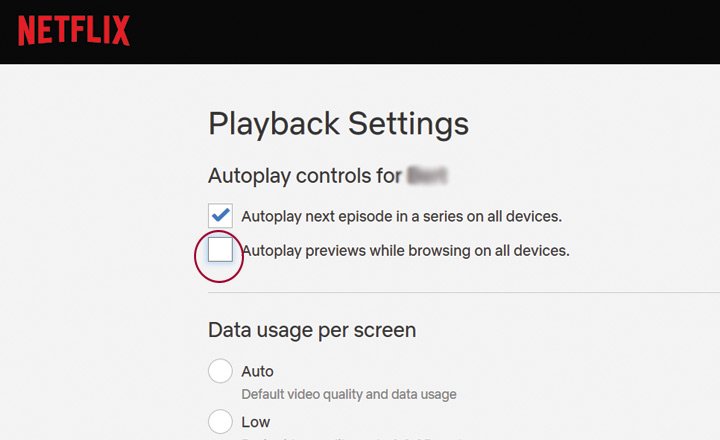
- Uncheck the Autoplay Boxes: This is where the magic happens. On the Playback settings page, you'll find two checkboxes under the "Autoplay controls" section:
- "Autoplay next episode in a series on all devices": Uncheck this box to prevent Netflix from automatically starting the next episode.
- "Autoplay previews while browsing on all devices": Uncheck this box to stop those disruptive video previews from playing as you browse titles.
- Click "Save" to Confirm: After unchecking your desired boxes, it's crucial to click the "Save" button at the bottom of the page. If you navigate away without saving, your changes will not be applied.
- Refresh and Verify: For the new settings to take immediate effect, it's a good practice to refresh your Netflix page or switch to a different profile and then back again. This forces the Netflix interface to reload with your updated preferences. You should now be able to browse without auto-playing previews and enjoy a natural pause after each episode.
- Important Note: If you share your Netflix account with family or friends and they use separate profiles, you'll need to repeat this entire process for each individual Netflix profile to ensure their autoplay settings are also adjusted according to their (or your) preferences. Remember, these settings are personal to each profile, not universal to the account.
By following these steps, you've taken a significant stride towards a more controlled and enjoyable streaming experience. Now, instead of Netflix dictating the pace, you're the one holding the remote, digitally speaking. To further enhance your control over your viewing experience across all devices, learning how to turn off Netflix autoplay effectively is paramount for every profile you manage.
What About My Phone or TV? A Quick Sync Check
While this guide focuses on web browsers, it's important to understand how these settings interact with your other devices. The good news is that Netflix profiles are designed to sync.
On Mobile Apps (Android / iPhone):
You can adjust autoplay settings directly within the Netflix mobile app, and these changes will also sync. The steps are similar:
- Open the Netflix app.
- Tap your profile icon or the "My Netflix" tab (bottom-right).
- Go to "Manage Profiles" (or select your profile name and then "Account" which redirects to the web in some cases).
- Tap the specific profile you want to modify.
- Look for toggles like "Autoplay Next Episode" and "Autoplay Previews" and turn them off.
- Exit the menu; changes usually save automatically.
For Smart TV or Streaming Devices (Roku, Fire Stick, Apple TV, Gaming Consoles):
Here's a common point of confusion: Netflix currently does not allow you to adjust autoplay settings directly through the interface of your Smart TV or most dedicated streaming devices.
However, this isn't a problem, because any changes you make via a web browser or the mobile app will automatically sync with your TV or streaming device. Your TV just needs to "check in" with Netflix's servers to get the updated profile preferences.
If Autoplay Continues on Your TV After Changing Settings:
- Sign Out and Sign Back In: This is the most effective method. On your TV's Netflix app, find the option to sign out of your profile or the entire account. Then sign back in. This forces the app to fetch the latest profile settings.
- Reload Netflix: Sometimes simply restarting the Netflix app on your TV (by closing it completely and reopening it) can do the trick.
- Check for App Updates: Ensure your Netflix app on the TV or streaming device is up-to-date. Outdated apps can sometimes have sync issues.
- Restart Your Device: A full power cycle of your TV or streaming device can resolve stubborn issues.
Remember, the web browser is your command center for comprehensive profile management, including autoplay.
Autoplay Still Haunting You? Troubleshooting Common Glitches
You've followed the steps, saved your changes, and yet, autoplay persists. Don't worry, you're not alone. Here are some common scenarios and their straightforward solutions:
- "A Preview Still Plays After I Select a Title."
- Is this an error? No, this is normal behavior. When you deliberately click on a show or movie title to view its details page, Netflix automatically starts playing a trailer or a snippet of the content. This is distinct from "Autoplay Previews while browsing." Your setting for disabling browsing previews prevents videos from starting as you scroll, but not when you actively select a title to learn more. The actual show will still start when you click "Play."
- "My Settings Aren't Applying, Even After Saving."
- Log out and log back in: This is the universal fix for many Netflix sync issues. On your web browser (or the problematic device), completely log out of your Netflix account. Restart your browser or device, then log back in. This forces a fresh connection and a full refresh of your profile settings from Netflix's servers.
- Clear browser cache/cookies: Sometimes, your browser holds onto old data. Clearing your browser's cache and cookies for Netflix.com can help.
- "It Works on My Browser, But Not My TV/Other Device."
- Re-check the correct profile: As emphasized, settings are per-profile. Double-check that you edited the exact same profile on the web browser that you are currently using on your TV or other device.
- Perform a hard refresh on the device: For TVs/streaming sticks, a full sign-out and sign-in is often necessary. Simply closing the app might not be enough. If that doesn't work, try restarting the device itself (unplug for 30 seconds, then plug back in).
- "My Autoplay Settings Seem to Revert on Their Own."
- Account sharing: If you share your account, ensure other users aren't inadvertently re-enabling autoplay on their profiles or even the same profile if they have access. Communication is key!
- A/B testing (rare): Very occasionally, Netflix might be A/B testing features, which can temporarily override user settings. This is uncommon for core playback controls but can happen. If the issue persists, contact Netflix support.
- "I Have an Older Smart TV / Streaming Device and Nothing Works."
- App compatibility: Certain legacy Smart TVs, older iPads, or very old streaming devices might not fully support real-time sync or the latest Netflix app features. Ensure your Netflix app is updated to the newest version available for your device. If issues persist, consult Netflix’s official Help Center for device-specific limitations. In extreme cases, you might consider using an external streaming stick that supports current Netflix app versions.
By systematically going through these troubleshooting steps, you should be able to resolve most autoplay persistence issues and ensure your Netflix experience remains under your control.
Beyond Autoplay: Elevating Your Netflix Experience
Disabling autoplay is a fantastic first step towards a more tailored streaming journey, but it's just one piece of the puzzle. Netflix offers a host of other settings that can significantly enhance your viewing pleasure and overall platform experience. Think of these as ways to further customize your digital living room.
1. Managing Your "Continue Watching" List:
That "Continue Watching" row on your Netflix homepage can quickly become cluttered with shows you sampled but never loved, or movies you started but didn't finish. A tidy list means less mental clutter and easier navigation to your truly active shows.
- How to do it: While not directly in "Account" settings, this is done from the web or mobile app. Navigate to the "Continue Watching" row. For each title you want to remove, hover over it (on web) or tap the three-dot menu (on mobile) and select "Remove from Row" or "Remove from Continue Watching." It's a simple, yet powerful way to declutter your homepage.
2. Adjusting Playback Quality:
Not everyone has blazing-fast, unlimited internet. Netflix allows you to set your preferred video quality, which directly impacts data usage. This is particularly useful for mobile users or those with capped data plans. - How to do it: Go to Netflix.com > Profile Icon > Account > Profile & Parental Controls (select profile) > Playback settings > Change. Under "Data usage per screen," you can choose from Low, Medium, High, or Auto. "Auto" is Netflix's default, but "Medium" can be a good balance for saving data without a drastic quality drop.
3. Customizing Subtitle Appearance:
If you rely on subtitles or captions, you know how crucial their readability is. Netflix gives you granular control over how they look, making for a more comfortable viewing experience, especially if you have visual impairments or simply prefer a different aesthetic. - How to do it: Go to Netflix.com > Profile Icon > Account > Profile & Parental Controls (select profile) > Subtitle Appearance > Change. Here, you can adjust font, size, color, shadow effects, and even background opacity. Experiment to find what works best for your eyes.
4. Exploring Netflix Games:
Did you know your Netflix subscription includes a growing library of mobile games, completely free of ads or in-app purchases? These aren't just for kids; there are award-winning titles and casual brain teasers alike. - How to do it: Open the Netflix app on your mobile device. You'll often see a dedicated "Games" row or tab. Tap on a game to learn more and download it from your device's app store. Once downloaded, you launch and play the game directly through the Netflix app. It's a hidden perk many subscribers overlook.
By taking advantage of these additional settings, you move beyond merely stopping interruptions to actively shaping a Netflix environment that truly serves your preferences and lifestyle.
Taking Control Further: How to Turn Off Subtitles
Just like autoplay, subtitles can be a double-edged sword. Essential for accessibility or foreign language content, they can also be distracting when you don't need them, covering up parts of the screen or simply adding visual clutter. Fortunately, turning them off is just as straightforward as managing autoplay.
On Web Browser (Desktop or Laptop):
- Start Your Show: Go to Netflix's website, navigate to the target show or movie, and begin playing it.
- Access Audio & Subtitles Menu: While the video is playing, move your mouse over the playback area. A bar will appear at the bottom. Click the "Audio & Subtitles" option (it usually looks like a speech bubble or a small square with lines).
- Select "Off": In the subsequent menu, locate the "Subtitles" section and choose the "Off" option.
- Confirm: Unlike profile-wide settings, changes here usually apply immediately without a separate "Save" button.
On Mobile App (Android / iPhone): - Open the App and Play Content: Launch the Netflix app on your mobile device and start playing the show or movie you wish to adjust.
- Tap for Options: Tap anywhere on the screen during playback to bring up the playback controls.
- Choose Audio & Subtitles: Look for the "Audio & Subtitles" icon (again, often a speech bubble or similar). It's usually located at the bottom or top of the screen.
- Select "Off" and Apply: Navigate to the Subtitles section and tap "Off." Then, tap "Apply" or an equivalent button to save the change and close the menu.
On Apple TV: - Start Playback: Open your Apple TV device, launch Netflix, and begin watching your desired video.
- Press the Center Button: While the show is playing, press the Center button (or Touch surface on newer remotes) on your Apple TV remote. This will bring up on-screen playback options.
- Select Subtitles and Turn Off: A menu will appear. Select "Subtitles" and then choose the "Off" option from the available languages/settings.
- Note: The specific steps and remote interactions may vary slightly depending on your Apple TV model (e.g., Siri Remote vs. older aluminum remotes).
Once turned off, subtitles will remain off for that particular show and often for subsequent content until you choose to re-enable them. It's a quick and easy way to clear your screen and focus purely on the visuals and audio.
Your Netflix, Your Rules: Stream Smarter, Not Harder
In an age where digital platforms constantly vie for our attention, reclaiming control over our entertainment experiences is more important than ever. By learning how to turn off Netflix autoplay on web browsers, you're not just disabling a feature; you're making a conscious decision to stream on your own terms.
This small adjustment can have a ripple effect, leading to more mindful viewing, fewer distractions, and a greater sense of agency over your time and digital habits. Whether you're aiming to curb binge-watching, reduce sensory overload while browsing, or simply prefer a quieter interface, Netflix provides the tools to tailor your experience.
So go ahead, make those changes. Refresh your browser. Enjoy the silence as you scroll, and take that deliberate breath before deciding whether to dive into the next episode. Your Netflix journey is yours to command. Stream smarter, not harder.