Disabling Netflix Autoplay on Mobile Apps for iOS and Android: Reclaim Your Browsing Peace
Ever found yourself in the Netflix app, casually browsing titles, only for a loud, unwanted preview to start blaring from your phone? Or perhaps you've stumbled into an endless binge, one episode flowing seamlessly into the next, leaving you wondering where the last three hours went? You're not alone. Many users seek a more mindful and controlled streaming experience, and thankfully, disabling Netflix autoplay on mobile apps (iOS & Android) is a straightforward process that puts you back in charge.
This guide is your definitive resource for quieting the noise, stopping the endless scroll, and tailoring Netflix to your preferences, not the other way around. We'll walk you through the precise steps, explain why these settings matter, and even touch on other handy features to enhance your overall viewing.
At a Glance: Your Quick Path to Autoplay-Free Netflix
- Two Types of Autoplay: Netflix features "Autoplay Previews" (video snippets with sound while browsing) and "Autoplay Next Episode" (automatically starts the next episode).
- Why Turn Them Off? To reduce distraction, save data, improve performance, and gain control over your viewing time.
- It's Per-Profile: Settings are tied to individual user profiles, not the device.
- Mobile App Method: The quickest way to adjust settings directly from your iOS or Android phone/tablet.
- Web Browser Alternative: You can also manage these settings via Netflix.com.
- Syncs Across Devices: Once changed on mobile or web, settings apply to all devices logged into that profile.
- Not Instant: Changes might require an app reload or log-out/log-in to take effect.
The Autoplay Dilemma: Why Netflix Keeps Talking (and Playing)
Netflix's autoplay features are designed with engagement in mind – to immerse you deeper, faster, and keep you watching longer. However, what's intended as convenience can often become a source of frustration. There are two main culprits in the autoplay experience:
- Autoplay Previews: These are the short video snippets that automatically play with sound when you hover over a title thumbnail, or land on an individual show's dedicated page. While they aim to give you a quick taste, they frequently interrupt a quiet browsing session with unexpected audio and motion, making it harder to focus on reading synopses or scrolling calmly.
- Autoplay Next Episode: This feature automatically launches the subsequent episode in a series as soon as the current one concludes. While great for hardcore binge-watchers, it removes natural stopping points, making it all too easy to drift from one episode to the next, often past your intended bedtime or commitments.
For many, these automatic behaviors detract from the user experience rather than enhancing it. It’s about more than just a minor annoyance; it’s about regaining agency over your digital consumption.
Why Take Back Control? The Benefits of Disabling Autoplay
Making these small adjustments can significantly improve your Netflix experience:
- Reduced Distraction and Annoyance: Imagine browsing new releases in peace, without sudden bursts of dialogue or music. Turning off previews creates a calmer, quieter environment.
- Enhanced Control Over Viewing: You get to decide when to move to the next episode, or if you even want to preview a title at all. It puts you back in the driver's seat.
- Less Noise and Visual Clutter: A static screen, even with enticing images, is often preferred over unexpected movement and audio, especially when others are around or you're simply trying to relax.
- Data Saving (Especially on Mobile): Those video previews, even short ones, consume data. If you're on a limited mobile data plan, preventing unnecessary background playback can save precious gigabytes.
- Improved Device Performance: On older or less powerful mobile devices, constant video playback in the background or between episodes can sometimes contribute to lag or responsiveness issues. Disabling autoplay can offer a smoother experience.
- Better Time Management: The "next episode" autoplay feature is a master of unintentional bingeing. By creating a deliberate pause, you gain a moment to consider if you truly want to continue, helping you manage your screen time more effectively.
Taking Back Control: Your Autoplay Off-Switch Strategy
It’s important to understand a couple of fundamental principles before diving into the how-to. First, Netflix autoplay settings are specific to each individual profile within an account. This means if you want to disable autoplay for your profile and your partner’s, you’ll need to adjust each one separately. Second, these settings sync across all devices. Change it on your phone, and it’s changed on your tablet, smart TV, or web browser when logged into that specific profile.
You cannot adjust autoplay settings directly from most smart TV or game console interfaces. The changes must be made either via the Netflix website or through the Netflix mobile app on your iOS or Android device. This centralized approach simplifies management, ensuring your preferences follow you wherever you stream. If you're looking for more general guidance on how to disable Netflix autoplay across all your devices, the process we're about to describe for mobile and web covers the core mechanics.
Step-by-Step: Disabling Autoplay on Your Mobile App (iOS & Android)
This is the most direct method for phone and tablet users. The steps are virtually identical for both iOS (iPhone, iPad) and Android devices.
- Open the Netflix App: Launch the Netflix application on your smartphone or tablet.
- Access Profile Management:
- If you're already logged into a profile, tap your profile icon (usually in the top-right or bottom-right corner, labeled "My Netflix" or similar).
- From the "My Netflix" or main menu screen, look for an option like "Manage Profiles" or tap your profile picture again to reveal a settings menu.
- Alternatively, if you're on the initial profile selection screen, tap the "Edit" button (often a pencil icon) associated with the profiles.
- Select the Desired Profile: Tap on the specific profile you wish to modify. Remember, you'll need to repeat these steps for each profile you want to adjust.
- Locate Autoplay Settings: Scroll down within the profile settings until you see the "Autoplay Previews" and "Autoplay Next Episode" options.
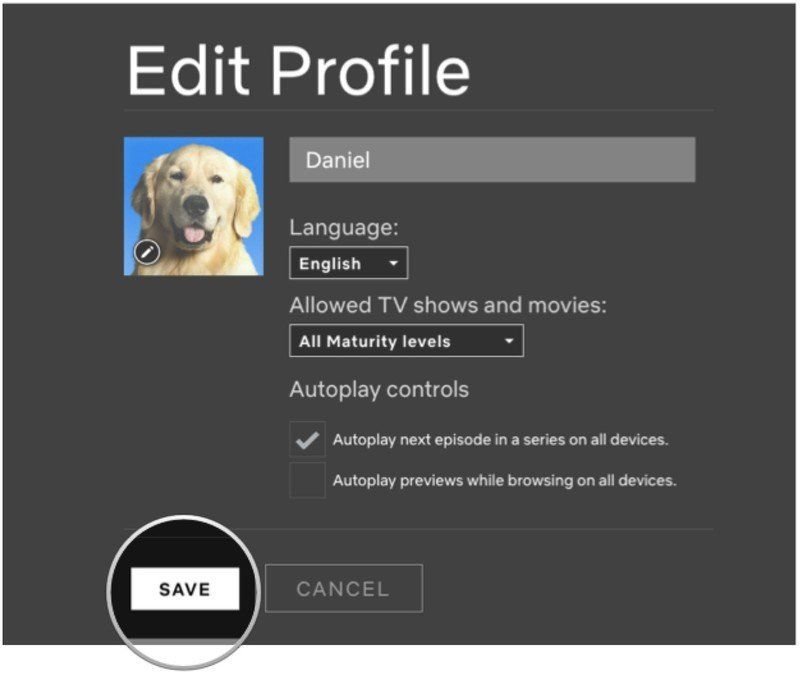
- Toggle Off Autoplay Previews: Tap the toggle switch next to "Autoplay Previews whilst browsing on all devices" to turn it off. The toggle will typically change color or position to indicate it's disabled.
- Toggle Off Autoplay Next Episode: Tap the toggle switch next to "Autoplay Next Episode in a series on all devices" to turn it off.
- Confirm Changes: Some app versions might have a "Done" or "Save" button; ensure you tap it if it appears. Your changes should now be saved.
The Web Browser Route: Another Path to Peace and Quiet
While this article focuses on mobile apps, managing your settings via a web browser offers the same control and can sometimes be more convenient if you're already at your computer. The changes made here will sync to your mobile apps as well.
- Go to Netflix.com: Open a web browser on your computer or mobile device and navigate to Netflix's official website.
- Sign In: If prompted, sign in to your Netflix account.
- Access Profile Management:
- Hover your mouse over your profile picture in the top-right corner of the screen.
- From the dropdown menu, select "Manage Profiles."
- Choose the Profile: Click on the specific profile you wish to adjust.
- Navigate to Playback Settings: Under the "Preferences" section for that profile, you'll find "Playback Settings." Click on it.
- Uncheck Autoplay Previews: Locate the checkbox labeled "Autoplay previews whilst browsing on all devices" and uncheck it.
- Uncheck Autoplay Next Episode: Find the checkbox labeled "Autoplay next episode in a series on all devices" and uncheck it.
- Save Your Changes: Crucially, click the "Save" button at the bottom of the page to apply your new settings.
Post-Adjustment Checklist: What to Expect and How to Troubleshoot
You’ve made the changes, but what happens next? Here’s what to keep in mind:
- Immediate Application Might Vary: While changes are usually swift, they may not apply the very instant you save them. If you don't see the effect immediately on your mobile app, try closing and reopening the app, or even logging out and logging back in.
- Playback After Selection is Normal: Disabling "Autoplay Previews" prevents snippets from playing while browsing. It does not prevent a movie or show from automatically starting playback once you actively tap on its title to watch it. This is standard behavior across all streaming platforms and indicates your selection has been registered.
- Remember Per-Profile Settings: If autoplay still persists on a device, double-check that you've adjusted the settings for the correct Netflix profile currently in use. This is a common oversight, especially in households with multiple users.
- Troubleshooting Tips:
- Log Out and Back In: This is often the magic bullet for applying stubborn settings changes.
- Restart Your Device: A full device restart can sometimes clear cached data and help new settings propagate.
- Update Your Netflix App: Ensure your Netflix app is running the latest version. Developers frequently release updates that fix bugs and improve stability, which can sometimes resolve issues with settings not applying correctly, particularly on older devices.
- Clear App Cache (Android): On Android, you can go into your device's Settings > Apps > Netflix > Storage > Clear Cache. This can sometimes help.
Beyond Autoplay: Enhancing Your Netflix Experience
Once you've tamed the autoplay beast, you might be curious about other ways to fine-tune your Netflix experience. The platform offers a surprising depth of customization that many users overlook.
Discover Hidden Gems: Netflix Games
Did you know Netflix offers a growing library of genuinely good mobile games, all included with your subscription, completely ad-free and with no in-app purchases? You might be surprised at the quality and variety. Look for the "Games" tab at the bottom of your mobile app screen (next to "Home" and "New & Hot"). It’s a fantastic perk for those moments when you want a break from passive viewing.
Tidy Up Your "Continue Watching" List
We've all started a show, realized it wasn't for us, but it forever lingers in that prominent "Continue Watching" row. You don't have to live with the clutter! You can manually remove titles from this list. On your mobile app (or a TV interface), simply navigate to the title's detailed page, and you should see an option like "Remove From Continue Watching" or a "thumbs down" icon that, when selected, gives you this option. It’s incredibly satisfying to curate a list that accurately reflects your current viewing habits.
Customize Subtitle Appearance
For those who rely on subtitles or simply prefer a different aesthetic, Netflix offers robust customization options. Instead of the default white text on a black background, you can adjust the font, size, and even the background color of your subtitles. To do this, you’ll typically need to go to your Netflix account settings on the web browser (Netflix.com), then navigate to "Profile & Parental Controls," select your profile, and then "Subtitle Appearance." This level of personalization can significantly improve accessibility and comfort for many viewers.
The Bottom Line: A Calmer Netflix Awaits
Disabling Netflix autoplay on mobile apps (iOS & Android) is a small but mighty step toward a more intentional and enjoyable streaming experience. By taking a few moments to adjust these settings, you reclaim control over your time, reduce unnecessary distractions, and personalize your Netflix journey to better suit your needs.
No more jarring previews, no more accidental multi-hour binges – just the content you want, on your terms. So go ahead, make the changes, and settle in for a truly peaceful viewing session.