Feeling overwhelmed by Netflix? Tired of sudden bursts of sound from auto-playing trailers, or finding yourself sucked into another episode when all you wanted was to pause? You're not alone. Many of us seek a more intentional, less intrusive viewing experience. This comprehensive guide is your roadmap to Controlling Other Netflix Autoplay Features (Intros, Credits, Previews), giving you the power to tailor your streaming world exactly how you like it.
We'll navigate beyond the default settings, helping you silence those unexpected previews, manage the relentless march of "next episode" prompts, and understand how Netflix handles those intro sequences and end credits. Get ready to reclaim your remote – and your peace of mind.
At a Glance: Your Quick Guide to Netflix Autoplay Control
- Silence the Noise: Easily disable "Autoplay Previews" to stop trailers and clips from playing automatically while you browse.
- End the Binge Cycle: Turn off "Autoplay Next Episode" to prevent the next episode from starting immediately after the current one finishes.
- Profile-Specific: Autoplay settings are applied per profile, ensuring each family member can customize their own experience.
- Web or Mobile First: You must change these settings via Netflix's website or mobile app – smart TVs and streaming devices don't offer direct controls.
- Intros & Credits Explained: Learn why "Skip Intro" and "Skip Credits" are on-screen prompts, not global autoplay settings, and how they work.
- Troubleshooting Tips: Quick fixes if your changes don't seem to stick right away.
Understanding the Netflix Autoplay Landscape: Previews, Episodes, and the "Skip" Buttons
Before we dive into the "how-to," let's clarify what we're actually controlling. Netflix offers two primary autoplay features that can be globally toggled on or off for your profile:
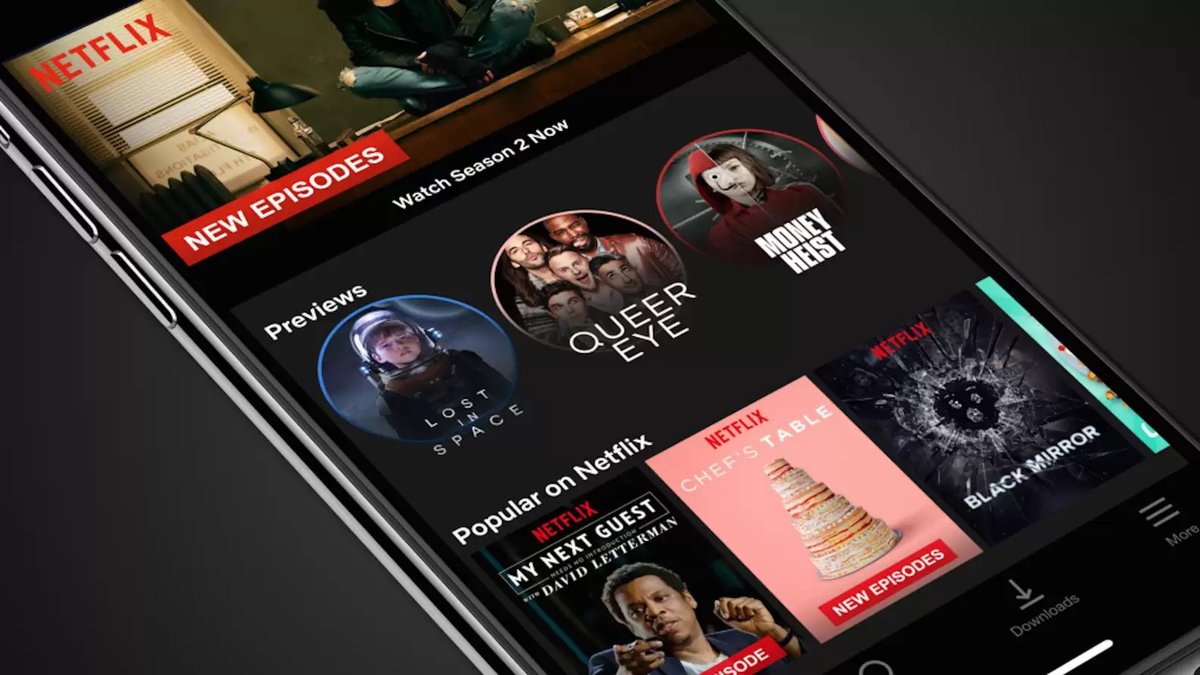
- Autoplay Previews: These are the short video snippets, clips, or trailers that automatically spring to life with sound the moment you hover over a title on the Netflix homepage or browse an individual show's page on your mobile app. They're designed to give you a taste of the content, but for many, they're a source of unexpected noise and distraction.
- Autoplay Next Episode: This is the feature that, as soon as you finish an episode in a series, automatically queues up and begins playing the next one. It’s a double-edged sword: fantastic for seamless binge-watching, but a real challenge for those trying to pace themselves or simply stop watching.
Now, what about the "Intros" and "Credits" mentioned in our title? This is where a common misconception arises. Unlike Autoplay Previews and Autoplay Next Episode, Netflix doesn't offer a global "turn off auto-skip intros" or "disable auto-play credits" setting within your profile. Instead, the "Skip Intro," "Skip Recap," and "Skip Credits" functionalities are on-screen prompts that appear during playback.
These buttons are designed to give you quick control in the moment of watching a show. They aren't a system-wide "autoplay" feature you disable, but rather a convenient user interface element to bypass repetitive content. So, while we can't globally disable intros or credits from appearing, we can manage the experience around them. Our focus here, therefore, will primarily be on taming those more pervasive "Autoplay Previews" and "Autoplay Next Episode" features.
Why Bother Controlling Autoplay? Reclaiming Your Netflix Experience
You might wonder why so many users choose to disable these seemingly convenient features. The reasons are numerous and speak to a desire for a more deliberate, less overwhelming streaming environment:
- Reduce Distraction and Noise: The sudden sound of a preview starting can be jarring, especially if you're just casually browsing or have others in the room. Disabling them creates a calmer, quieter browsing experience.
- Avoid Accidental Binge-Watching: That "Autoplay Next Episode" feature is powerful. For many, turning it off is a crucial step in mindful viewing, preventing unintended all-night sessions and giving you a conscious pause to decide if you really want to continue.
- Save Data and Bandwidth: While seemingly minor, constant previews and continuous episode playback can consume more data, which is especially relevant for mobile users or those with capped internet plans. Turning them off can help manage your usage.
- Improve Device Performance: On some older or less powerful devices, constantly loading and playing previews in the background can contribute to slower performance or battery drain. A calmer UI can mean a smoother experience.
- Gain Control and Intentionality: Ultimately, disabling autoplay gives you back control. You decide when a preview plays (by clicking), and you decide when the next episode starts. It shifts the power dynamic, making Netflix a tool for your entertainment, rather than a driver of your habits.
Your Guide to a Quieter, Calmer Netflix: Disabling Autoplay Features
The good news is that taking control of Netflix's autoplay features is straightforward. Just remember one golden rule: these changes are profile-specific and must be made via the Netflix website on a desktop/laptop or through the mobile app. You won't find these settings directly on your Smart TV or streaming device's Netflix app. Once you make the change for a specific profile, it will sync across all devices that use that profile.
Let's walk through the steps.
Step-by-Step: Disabling Autoplay on a Web Browser (Desktop or Laptop)
This is often the easiest and most robust way to manage your Netflix profile settings.
- Head to Netflix: Open your preferred web browser and go to netflix.com.
- Log In: If you're not already, log into your Netflix account.
- Access Profile Management:
- Hover your mouse over your profile picture in the top-right corner of the screen.
- From the dropdown menu, select "Manage Profiles."
- Alternatively, you can click your profile icon, then select "Account," and from there, scroll down to the "Profile & Parental Controls" section and click the down arrow next to the profile you wish to adjust.
- Select Your Profile: Under "Manage Profiles," click on the specific profile you want to modify. If you went via "Account," simply ensure the correct profile is expanded.
- Navigate to Playback Settings: Look for a section titled "Profile Settings" or "Playback settings." Click "Change" next to "Playback settings."
- Uncheck the Boxes: You'll see two key options here:
- "Autoplay previews whilst browsing on all devices": Uncheck this box to silence those automatic trailers and clips.
- (Optional) "Autoplay next episode in a series on all devices": Uncheck this box if you want to stop Netflix from automatically starting the next episode. This is a game-changer for mindful viewing.
- Save Your Changes: Don't forget this crucial step! Click the "Save" button at the bottom of the page.
- Refresh and Confirm: Sometimes, changes don't take effect instantly. To ensure your new preferences are active, refresh your Netflix page or even switch to another profile and then back to the modified one.
You might be surprised at how much calmer your browsing experience becomes, allowing you to actually read descriptions before committing to a click. If you're looking for more general guidance on stopping the endless stream, this process is key to turning off Netflix autoplay.
Step-by-Step: Disabling Autoplay on the Mobile App (Android / iPhone)
Managing settings from your phone or tablet is just as easy:
- Open the Netflix App: Launch the Netflix app on your Android or iPhone device.
- Access Profile Management:
- From the initial profile selection screen, tap the "Edit" button.
- Alternatively, if you're already in a profile, tap your profile icon (usually top-right or bottom-right, depending on your app version) or the "My Netflix" tab (bottom-right). Then, look for "Manage Profiles" or tap your profile picture and then "Account" to find "Profile & Parental Controls."
- Select Your Profile: Tap on the profile you wish to adjust.
- Toggle Off Autoplay: Scroll down until you find the "Autoplay Controls" section. Here you will see toggles for:
- "Autoplay Previews": Tap to turn this off. The toggle will switch from colored (on) to grey (off).
- (Optional) "Autoplay Next Episode": Tap to turn this off if you want more control over your series viewing.
- Save Preferences: Unlike the web browser, there usually isn't a dedicated "Save" button. Simply exiting the menu by tapping the back arrow or swiping back will automatically save your preferences.
That's it! Your mobile browsing and viewing experience should now be free from unexpected autoplay features.
Navigating Intros and Credits: The Manual Approach
As we discussed, "Intros" and "Credits" are handled differently by Netflix. You won't find a global setting to disable them from appearing, but you have immediate control during playback:
- "Skip Intro" Button: When an intro sequence begins for a TV show, a "Skip Intro" button will typically appear in the bottom-right corner of your screen. A quick click or tap will jump you directly to the start of the episode's main content. This is incredibly useful for re-watching shows or bingeing a series where the intro becomes repetitive.
- "Skip Credits" Button / Post-Play Screen: Similarly, as a show or movie ends and the credits roll, you'll often see options like "Skip Credits," "Play Next Episode," or "More Like This." The "Play Next Episode" button effectively functions as a manual alternative to the "Autoplay Next Episode" feature once you've disabled it, giving you the choice.
These on-screen controls are designed for convenience, allowing you to interact with the content dynamically rather than relying on a static, global setting.
Troubleshooting Common Autoplay Glitches
Sometimes, technology doesn't play nice immediately. If you've followed the steps above and still find previews auto-playing or episodes continuing without permission, here are some common troubleshooting steps:
- Patience is a Virtue: Changes, especially to profile settings, might not apply immediately across all your devices. Give it a few minutes, or even up to an hour.
- Reload and Restart:
- Web Browser: Completely close your browser and reopen it.
- Mobile App: Force close the Netflix app (swipe it away from your recent apps list) and then reopen it.
- Streaming Device/Smart TV: Sign out of Netflix on the device, then sign back in. If that doesn't work, try restarting the device itself (unplug it for 30 seconds, then plug it back in).
- Verify the Correct Profile: Double-check that you indeed made the changes to the correct profile. Each profile has its own independent autoplay preferences. It's easy to accidentally adjust a child's profile when you meant to adjust yours!
- "Previews" vs. "Playback": Remember, disabling autoplay previews stops them when you're browsing. It does not stop a video from playing if you intentionally click on a movie or show to view its details or begin watching. That's normal behavior.
- Update Your App: Ensure your Netflix app is updated to the latest version on all your devices. Outdated apps can sometimes have trouble syncing settings.
- Clear Cache (Advanced): On some devices, clearing the Netflix app's cache or data (found in your device's app settings) can resolve stubborn issues, but this will require you to log back in.
If all else fails, Netflix's official support channels are always available to help.
Beyond Autoplay: Enhancing Your Overall Netflix Experience
Taking control of autoplay is just one step toward a more personalized Netflix experience. The platform offers a host of other settings and features that can significantly improve your enjoyment.
- Manage Your "Continue Watching" List: Ever started a show, realized it wasn't for you, but now it clutters your homepage? You can easily remove unfinished or unwanted titles. Navigate to your Account settings on the web, then "Profile & Parental Controls," select your profile, and click "Viewing Activity." From there, you can hide titles from your viewing history, which also removes them from your "Continue Watching" row.
- Adjust Playback Quality and Data Usage: Concerned about data consumption or want to ensure the best possible picture? In your "Account" settings, under "Profile & Parental Controls," expand your profile and click "Change" next to "Playback settings." Here, you can set your preferred video quality or data usage per hour. Lowering this can be a boon for mobile data or slower internet connections.
- Customize Subtitle Appearance: For those who rely on subtitles or simply prefer a different aesthetic, Netflix offers robust customization. In your "Account" settings, under "Profile & Parental Controls," select "Subtitle Appearance." You can tweak the font, size, color, shadow, and even background of your subtitles to suit your visual preferences.
- Explore Netflix Games: Did you know your Netflix subscription includes a growing library of mobile games? With no ads or in-app purchases, they're a fantastic, often overlooked, perk. Access them through the "Games" tab in your mobile Netflix app. It's a great way to discover new entertainment beyond just shows and movies.
These small adjustments, much like disabling Netflix autoplay, empower you to craft a streaming environment that truly serves your preferences.
Taking Control Back: Your Personalized Netflix Awaits
The default settings on Netflix are designed for maximum engagement, but maximum engagement doesn't always equal maximum enjoyment. By taking a few minutes to adjust your profile settings, you've moved from a passive viewer to an active director of your own entertainment experience.
No more jarring sound from unexpected previews. No more accidental five-episode binges when you only meant to watch one. You've learned how to silence the noise, manage the flow, and understand the nuances of how Netflix delivers content – from its global autoplay toggles to its helpful "skip" buttons.
The power is now in your hands to create a calmer, more intentional, and truly personalized Netflix experience. Go forth and stream, on your terms!